MirrorLink
FastSoftLibraries & Demo
4.21.14K Reviews
- Version
- 3.1.0
- Installs
- 1.00M
- Age Rating
- Everyone
Screenshots
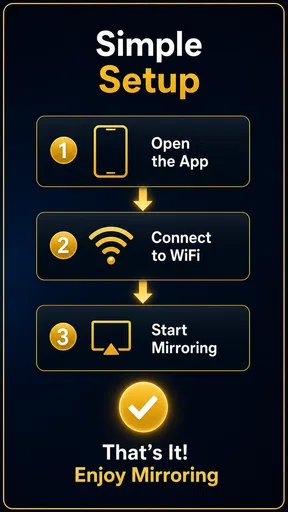
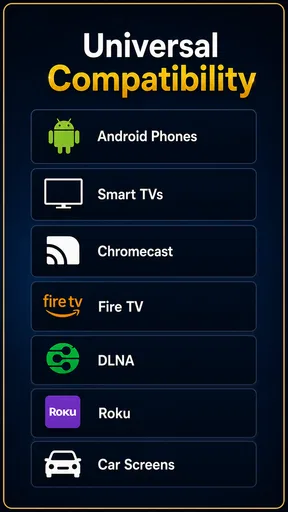
Our Review of MirrorLink
 Analysis by Appyee
I tried Mirror Link Car with one clear goal: to make the phone more useful on a car display without turning the dashboard into another complicated gadget. The app sits in the Libraries & Demo category, but that label undersells what it is like to use. In practice, it is a connection-focused tool for people who want their phone and car screen to work together through Mirror Link or Android Auto.
That distinction matters. This is not a replacement for a full navigation, music, or messaging app. Its value comes from helping you reach the car’s display experience more easily. When the connection works, the phone becomes less isolated in your pocket and the dashboard becomes a more practical place to access compatible content. When the connection does not work, the frustration usually comes from the car, cable, phone settings, or compatibility rather than from the idea itself.
FastSoft has kept the app free, which makes it easy to test before deciding whether it belongs in your regular driving routine. It is rated for Everyone, and the current release is version 2.1.0. The app has built a sizeable audience, with more than a million installs and an average rating of 4.1 from roughly thirty-two thousand ratings. Those figures suggest that the basic purpose is clear to many users, while the less-than-perfect score also fits my experience: connection tools can be useful, but they depend heavily on the devices around them.
What the central connection capability really changes
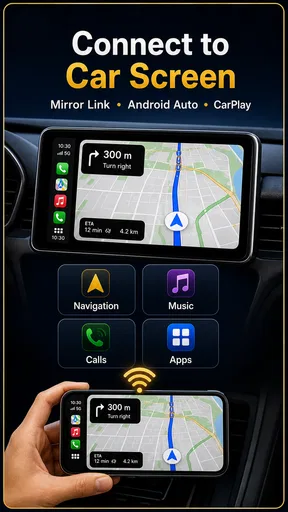
The important capability here is the attempt to connect a phone with a car screen through Mirror Link and Android Auto. That sounds simple, but the practical effect is more specific than “put everything from your phone on the dashboard.” A compatible car interface normally limits what can appear while driving, and that is a good thing. The screen is meant to reduce distraction, not reproduce every phone app in a larger format.
For me, the benefit is less about adding new content and more about changing where familiar content appears. Instead of holding the phone for every small interaction, I can aim to use the vehicle display and its controls where the car supports them. Navigation instructions are easier to glance at in a fixed position, audio controls feel more natural near the steering wheel, and the phone can remain out of the way.
That makes the app most interesting for drivers whose car already has a suitable display but whose connection process feels unclear or unreliable. It can also be useful for someone checking whether a particular phone-and-car combination is worth setting up. The app does not magically turn every dashboard into a fully compatible system, so expectations need to stay realistic. Its role is to help bridge the phone and the vehicle, not to remove the technical requirements of either one.
I also appreciate that the app’s purpose is easy to understand. There is no need to learn a large content library or create a new social profile before seeing its value. You install it, work through the connection process, and judge the result from the dashboard. That directness is a strength compared with broader driving apps that add route planning, fuel tracking, vehicle logs, or media features you may never use.
The first setup is where patience pays off
In everyday use, the first attempt should be treated as a setup session rather than something to rush through in a parked car. I would begin with the vehicle stopped, the phone sufficiently charged, and the car’s display system ready. If the phone asks for confirmation or the car presents a prompt, accepting it deliberately is better than tapping through quickly and then wondering why the connection did not appear later.
The most useful habit is to separate three possible problems: the phone, the vehicle, and the connection path between them. If the car does not detect the phone, I first check the physical connection and whether the phone is unlocked. If the phone appears connected but the dashboard offers nothing useful, I look at the car’s selected input and its own interface. If the connection starts and then drops, I treat that as a stability problem rather than repeatedly reinstalling the app.
This is one of the less obvious lessons with a tool like this: a successful first connection does not always mean the next one will be automatic. Cars can remember more than one phone, and the wrong device may be selected. A family car used by several drivers can therefore create confusion that looks like an app failure. Giving each person a consistent connection order can save more time than changing settings at random.
Another practical tip is to test the exact workflow you expect to use before driving. Open the navigation or audio app you normally rely on, check what the car screen actually shows, and make sure the controls respond as expected. A connection that technically exists is not necessarily a connection that feels safe or convenient. The useful question is not “Did the phone connect?” but “Can I complete my normal driving tasks with fewer distractions?”
What to expect from the screen experience
The phrase “mirror” can create the wrong expectation. I would not approach this as a promise that every phone screen will appear unchanged on the dashboard. Car interfaces often restrict what can be displayed, especially while the vehicle is moving. That is not a flaw unique to this app; it is part of the safety design of in-car systems.
In practice, the best result is a focused dashboard experience rather than a giant copy of the phone. Compatible navigation, communication, and media functions are the areas where the connection makes the most sense. If your main goal is to use a phone-only app that has no suitable car interface, you may find the result disappointing even when the link itself is working.
I found it helpful to think of the phone as the source and the car as the controlled viewing environment. The phone may handle the connection, while the dashboard decides how that content is presented. This explains why two cars can feel very different with the same handset. One may offer a smooth, readable interface, while another may provide fewer controls or require more manual selection.
For a short trip, that difference may not matter. During a longer drive, it becomes much more noticeable. A stable connection with limited but clear controls is preferable to a broad display that encourages frequent attention. The real success of Mirror Link Car is measured by reduced phone handling, not by how much of the phone it can expose.
A realistic daily scenario
Imagine leaving work in a car that supports a compatible display connection. Before moving, I connect the phone, confirm that the dashboard has selected the right source, and choose the route I need. Once underway, the phone can stay in its holder or out of reach while the car screen presents the information that matters. If I want audio, I use the vehicle controls where available instead of picking up the phone for every adjustment.
The time saved is not dramatic in a single moment. The improvement comes from removing several small interruptions: checking a route, changing a track, or confirming whether the phone is still connected. Those tiny actions are exactly where a dashboard integration can feel worthwhile. The app is therefore more convincing as part of a repeated commute than as a novelty used once in a parked car.
There is also a useful pre-drive routine for families. The driver can connect the phone while stationary, verify the display, and then put the handset away. Passengers can handle their own entertainment on a separate device without forcing the driver to manage the phone. That separation makes the setup feel less fragile and keeps the driver’s attention on the road.
For rental cars or borrowed vehicles, I would be more cautious. A connection tool may help, but unfamiliar dashboards often have their own menus and restrictions. I would not spend a trip troubleshooting an uncertain setup while traffic is moving. If the connection is not obvious within a safe parked test, the better choice is to use the car’s familiar controls or wait until the journey ends.
Where it compares well with usual alternatives
The usual alternative is to use the phone by itself, mounted near the driver. That can be perfectly adequate for occasional navigation, especially when the car has no compatible display. It is also simpler: there is no pairing process and no need to understand the dashboard’s input settings. The trade-off is that the phone remains another device to manage, and its screen may be smaller or positioned less naturally than the built-in display.
A second alternative is the manufacturer’s own connection method or the standard Android Auto setup without an additional helper app. If that route already works reliably on your phone and car, it may be the cleaner choice. I would not add another layer just for the sake of having one. Mirror Link Car makes more sense when you need a straightforward connection-oriented option or when you want to explore the phone-to-screen workflow before committing to a more involved setup.
Dedicated navigation apps are also different products. They may offer richer route planning, saved places, traffic tools, or offline maps. This app should not be judged as though it were competing with them feature by feature. Its job is to help the phone and display cooperate. You still need appropriate apps and a compatible vehicle experience for the connected screen to become genuinely useful.
That narrow focus is both its advantage and its limitation. Someone who wants a small, purpose-driven utility may appreciate the lack of unrelated features. Someone looking for an all-in-one driving assistant will probably prefer a broader app or the car maker’s integrated system.
The trade-offs that matter before regular use
The biggest trade-off is compatibility. A free app is easy to try, but a successful result depends on more than installing it. The phone’s operating system, the car’s display, the connection method, and the vehicle’s support for the relevant standard all influence the outcome. The minimum supported Android version is 7.0, which covers many older phones, but software support alone does not guarantee that a particular car will cooperate.
This is why I would avoid judging the app after a single failed attempt. First check whether the vehicle actually supports the connection style you want, then retry while parked with the phone unlocked and the correct dashboard input selected. If the car never recognizes the phone, changing unrelated in-app settings is unlikely to solve the real issue. The honest limitation is that this kind of utility cannot overcome missing hardware support.
There can also be friction when switching between phones. If two drivers use the same car, the dashboard may remember a previous device or prioritize it. A simple solution is to connect one phone at a time and confirm which name the car is showing before starting. This is not an exciting feature, but it is the sort of practical detail that determines whether the app feels dependable in a shared vehicle.
I would also be careful about treating a larger screen as permission to interact more often. The safest workflow is prepared before departure: route selected, audio chosen, and the phone placed where it will not invite handling. If you need to change several things during the drive, the connection has not solved the attention problem. It has only moved the controls.
Another limitation is that the dashboard experience may not match the phone experience in layout or available actions. That can be surprising if you expect a direct visual copy. The better approach is to learn the car’s version of the interface and use only the controls it presents clearly. If a specific app is central to your routine but does not appear or behave as expected, this may not be the right solution for that particular need.
Small workflow improvements that make it more useful
I would create a simple pre-drive checklist: connect while parked, confirm the correct phone, select the intended dashboard input, and test one basic action. This takes less time than troubleshooting after pulling away. It is especially worthwhile for unfamiliar cars, shared vehicles, and the first few uses after changing phones.
Keep the phone’s role simple. If the phone is mainly supplying the connection while the car provides the display and controls, avoid opening unrelated apps just before driving. A clean starting point makes it easier to tell whether the issue is with the connection or with the content you are trying to use.
For commuters, consistency is more valuable than experimentation. Use the same connection order each morning and leave the car on the same input when possible. If the system is stable one day and absent the next, note what changed: another phone may have been connected, the cable may have moved, or the car may have started on a different source. This kind of observation is more effective than assuming the app is randomly failing.
For occasional users, I would test it at home or in a driveway before a long journey. That gives you time to learn the dashboard menus without pressure. It also reveals whether the vehicle’s screen is genuinely helpful for your needs. If you only want basic directions and the phone holder already works well, the added setup may not justify itself.
Who gets the most value from it
Mirror Link Car is a good fit for drivers who already have a compatible car display and want a simpler path to using it with their phone. It is particularly appealing to people who dislike handling a handset for small driving-related tasks, commuters who repeat the same route, and households where the dashboard connection needs to be checked quickly before each trip.
It can also suit someone with an older Android phone who wants to test a connection workflow without paying for an additional app. Since it is free and supports Android versions beginning with 7.0, the entry barrier is low. The Everyone age rating also makes it straightforward as a general-purpose utility for a household, although the person driving should always remain the one responsible for safe use.
I would skip it if your car has no compatible screen connection, if you expect unrestricted phone mirroring, or if the manufacturer’s built-in solution already works perfectly. I would also skip it if you are looking for advanced navigation, offline route planning, vehicle diagnostics, or a complete media suite. Those are different needs, and adding a connection app will not turn it into a specialized driving platform.
My final impression is positive but deliberately practical. FastSoft’s app is most valuable when it removes a small amount of friction from an existing phone-and-car setup. It does not make compatibility disappear, and it does not guarantee that every phone screen will appear exactly as it does in your hand. What it can do is give the connection process a clear purpose and make the dashboard a more natural place to use supported phone functions.
If your vehicle and phone are already close to working together, this free app is worth trying while parked. Give it a proper setup session, test your real commute workflow, and judge it by how often you can leave the phone alone afterward. For that specific use, it is a useful, focused tool; for anything broader, the standard car system or a dedicated driving app may be the better choice.
Verdict
Strengths of MirrorLink
- Easy way to mirror compatible phone content on a car display.
- Can make navigation and media controls more convenient while driving.
- Supports a simpler dashboard experience than handling the phone directly.
- Useful for accessing selected apps on larger vehicle screens.
- Setup is generally quick when the phone and car are compatible.
Limitations of MirrorLink
- Compatibility varies widely between phones, cars, and infotainment systems.
- Some features may require a wired USB connection instead of wireless use.
- Mirrored apps can be limited by driving-safety restrictions.
- Performance may suffer from lag on older phones or car systems.
- The app may not work reliably with every Android or iOS device.
Other Releases by FastSoft
View All
Endoscope Camera Connector
Libraries & Demo3.6

AirPlay - Cast Tv
Libraries & Demo4.2
Similar Picks in This Category
View All
PGT: GFX, Launcher & Optimizer
Trilokia Inc.4.5

AusweisApp Bund
Governikus Service GmbH3.7

Cardboard
Google LLC3.2

Gamers GLTool with Game Tuner
Trilokia Inc.4.5

Multi Web Chat - Read Secretly
World Scan & Cleaner3.8

App Cloner Premium & Add-ons
App Listo1.9
Frequently Asked Questions
What is Mirror Link Car, and what does it do?
Mirror Link Car is designed to connect a compatible Android smartphone with a supported vehicle infotainment system, allowing selected mobile content to appear on the car’s display. Depending on the phone, vehicle, and connection method, it may provide access to navigation, music, calls, and other approved apps. It is not a guaranteed replacement for every manufacturer’s official Android Auto or CarPlay solution.
Is Mirror Link Car compatible with every Android phone and car?
No. Compatibility depends on several factors, including the Android version, phone manufacturer, USB or wireless connection support, and the multimedia system installed in the vehicle. Some newer phones and cars no longer support the original MirrorLink standard, while others require a specific adapter or manufacturer application. Check your car’s manual and the app’s current compatibility information before downloading.
Does Mirror Link Car work without an internet connection?
The connection between the phone and the car may work without mobile data when it uses USB, Bluetooth, or a supported local wireless connection. However, features such as online maps, traffic updates, music streaming, voice assistants, and cloud-based services still require internet access. Offline navigation and locally stored media can continue working, but their availability depends on the apps used.
How do I connect Mirror Link Car to my vehicle?
Begin by parking safely, enabling the required permissions on your phone, and checking whether your vehicle supports MirrorLink or a compatible mirroring method. Connect the phone using a high-quality USB cable or the supported wireless option, then select the appropriate source on the car’s display. If the connection fails, restart both devices, unlock the phone, and verify that USB permissions and compatibility settings are enabled.
Is Mirror Link Car safe to use while driving?
The app should be used only in a way that complies with local traffic laws and your vehicle manufacturer’s safety instructions. Drivers should not browse, type messages, watch videos, or adjust complicated settings while the vehicle is moving. Set up navigation and audio before starting your trip, use voice controls where available, and ask a passenger to operate the phone whenever an action requires attention.
